PORTFOLIO // PROJECT
MISTC Survey
Automation
An automated course feedback pipeline — designed and implemented in Microsoft Power Automate to collect student responses, store course feedback, synchronize instructor comments, and prepare the process for transition to curriculum staff.
This project transformed a repetitive manual survey process into a scalable, maintainable, automated system supporting the MAGTF Integrated System Training Centers (MISTCs) — backend process engineering in service of real weekly course execution.
SEC 01 // PROJECT OVERVIEW
From manual survey handling to a managed data pipeline.
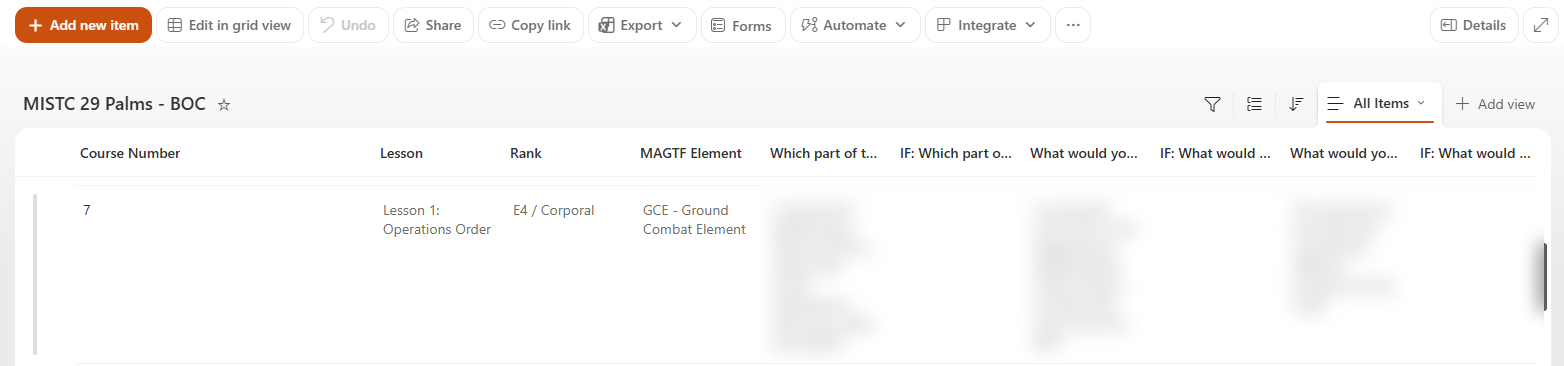
This automation was built to support MISTC course feedback workflows. Student surveys are collected through Microsoft Forms, then automatically processed into structured data stores that curriculum staff can actually use: every response lands in both an Excel table and a SharePoint list, creating a cleaner, more flexible backend for tracking, reviewing, and updating course feedback over time.
This was not a simple form-to-spreadsheet workflow. It required deliberate design to support weekly course execution, instructor feedback updates that arrive after student submissions, reduced friction for end users at the schoolhouse, and a clean future handoff to the curriculum staff who will own it long term. I designed, built, tested, and refined the automation end to end — and coordinated with curriculum staff and stakeholders to prepare it for handoff and implementation across courses.
SEC 02 // THE PROBLEM
Collecting responses was easy. Making them sustainable wasn't.
The original challenge was never just gathering student survey responses — it was making the data usable and sustainable for the people who manage curriculum. The workflow had to support recurring courses, weekly survey cycles, and a future where curriculum staff run the process themselves without constant troubleshooting.
Two problems made that hard. First, the survey workbook changes from course to course, so the automation couldn't stay tied to one static Excel file — replacing the file would normally break a Power Automate flow bound to a fixed workbook identity. Second, instructor feedback needed to be added later, after student submissions were already recorded, which meant the system had to handle updates flowing back into existing records, not just new rows going in.
SEC 03 // THE SOLUTION
Two flows, one managed workflow.
I architected a two-part automation in Microsoft Power Automate that turned a one-time submission log into a two-way managed workflow — with the engineering details that keep it running course after course.
FLOW 1
Capture
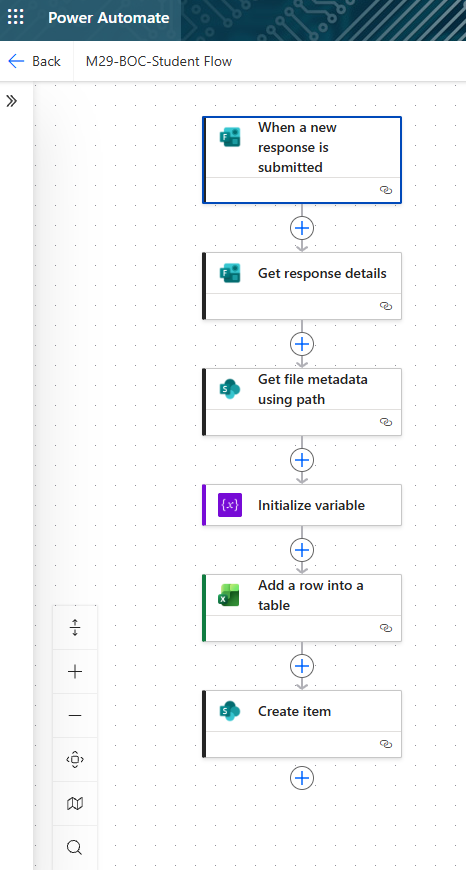
Captures student survey submissions from Microsoft Forms, retrieves the current active workbook from SharePoint, and writes each response into both a structured Excel table and a SharePoint list — a data pipeline that keeps course feedback accessible in more than one format.
FLOW 2
Sync
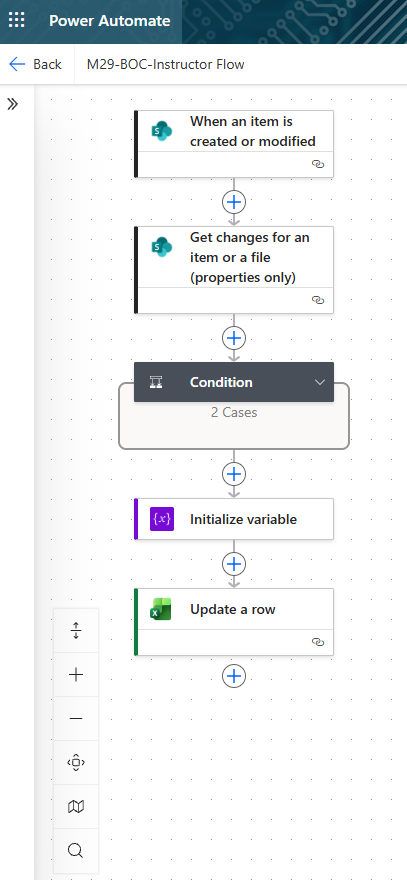
Monitors changes made by curriculum or instructor staff in SharePoint — specifically the instructor comment fields and feedback blocks populated later — finds the matching record in Excel using a stable ID, and updates the correct row so both systems stay aligned.
ENGINEERING
Built to Survive Rotation
The active workbook lives in a designated SharePoint location for the current course cycle; the flow locates it dynamically by path at runtime instead of a hardcoded file reference, so rotating in each course's fresh weekly spreadsheet doesn't break anything. I also standardized the Excel table structure after discovering that punctuation and special characters in long survey question headers created mapping and update issues — adjusting the row object to match what the connector actually requires.

SEC 04 // WORKFLOW BREAKDOWN
End to end, step by step.
STEP 01
Submit
A student completes the course survey in Microsoft Forms.
STEP 02
Collect
Power Automate triggers and gathers the full response details.
STEP 03
Locate
The flow finds the active survey workbook stored in SharePoint for the current course cycle.
STEP 04
Write
The response is written into a structured Excel table in that workbook.
STEP 05
Mirror
The same response is written into a SharePoint list where staff can manage and review it.
STEP 06
Update
Instructors add comments and feedback to records in SharePoint after the fact.
STEP 07
Detect
The second flow watches those feedback fields and catches every modification.
STEP 08
Sync
Using a stable ID, it updates the matching Excel row so both systems stay aligned.
The result: less manual manipulation of survey data, a backend curriculum staff can actually manage, repeatability from course to course, and a clean transition path away from single-person ownership — mature enough that additional testing at MISTC East was no longer needed before broader implementation.
SEC 05 // SKILLS DEMONSTRATED
Skills demonstrated
SEC 06 // PROJECT SUMMARY
Executive summary
This project improved the MISTC survey process end to end: student feedback flows automatically into structured, staff-manageable data stores; instructor comments stay synchronized across systems; and the workflow survives course-to-course rotation without breaking. It reduced friction for curriculum staff, enabled an easier handoff away from single-person ownership, and demonstrates my ability to build maintainable automation solutions that support mission-focused organizations — applying the right tools in a structured environment, solving the hidden implementation issues, and delivering something real teams can sustain.